
If your internet seems fine but streaming still buffers, rooms have dead zones, or video calls keep dropping, a wifi analyzer app can help you see what may be going wrong. These apps are popular because they give a clearer picture of signal strength, nearby network congestion, and whether router placement could be part of the problem. For many homeowners, that makes WiFi issues feel less like guesswork and more like something they can actually test.
That said, an analyzer app is not a magic fix. It can point to weak coverage, crowded channels, and inconsistent signal patterns, but it cannot solve every performance issue on its own. Device limitations, internet service problems, and hardware bottlenecks can still affect results. The real value is using the app as one part of a practical WiFi health check.
At Smart Home LA, the goal is to make that process easier to understand. In this article, you’ll learn what a wifi analyzer app can reveal, how to interpret the readings, and what next steps make the biggest difference when your home WiFi feels slow or unreliable.
What Most People Want to Know First
Most people want a simple answer: can an app actually diagnose weak WiFi? In many cases, yes—it can reveal whether the problem looks like poor signal coverage, interference from nearby networks, or router placement that leaves parts of the home underserved. What it cannot do is fully diagnose every network issue by itself. The app helps surface clues, but good testing and the right follow-up steps are what turn those clues into better performance.
What Is a WiFi Analyzer App?
A WiFi analyzer app is a tool that helps you understand the health of your wireless network beyond a basic speed result. Instead of only telling you how fast your internet feels at one moment, it shows what your WiFi environment looks like: signal strength, nearby networks, channel overlap, and which bands are being used.
In simple terms, a speed test measures throughput, or how quickly data moves between your device and the internet. A WiFi analyzer helps explain why that speed may be great in one room and weak in another. If you want to learn more about what affects WiFi speed at home, it helps to know that speed and signal are related, but they are not the same thing.
WiFi Test vs. WiFi Analyzer
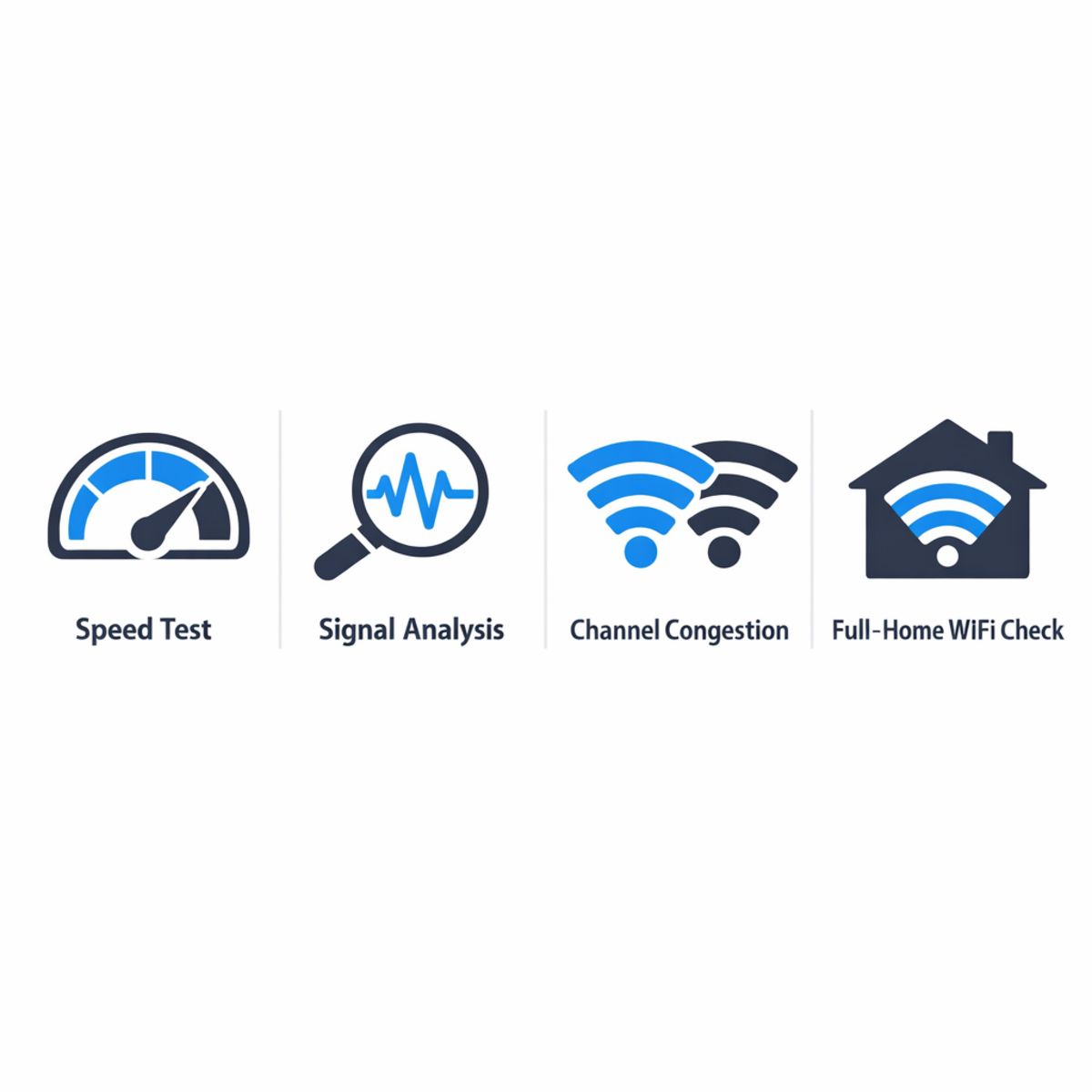
A WiFi test usually checks download speed, upload speed, and sometimes latency. That is useful, but it does not always reveal the cause of poor performance. A WiFi analyzer acts more like a broader WiFi health check. It can show whether your signal is weak, whether too many networks are crowding the same channel, or whether your device is connected to a slower band than expected.
What the App Usually Shows
Most analyzer apps display RSSI, which is a plain-language way of describing signal strength. They also show channels, which are the lanes WiFi networks use to communicate. If several nearby networks share the same lane, congestion can happen. You may also see 2.4 GHz, 5 GHz, and 6 GHz bands. Think of these as different WiFi ranges: 2.4 GHz reaches farther but is often busier, 5 GHz is usually faster at shorter range, and 6 GHz offers newer, cleaner space for compatible devices.
Together, these readings make it easier to spot dead zones, interference, and connection patterns without overwhelming you with technical jargon.
What a WiFi Analyzer Can Tell You
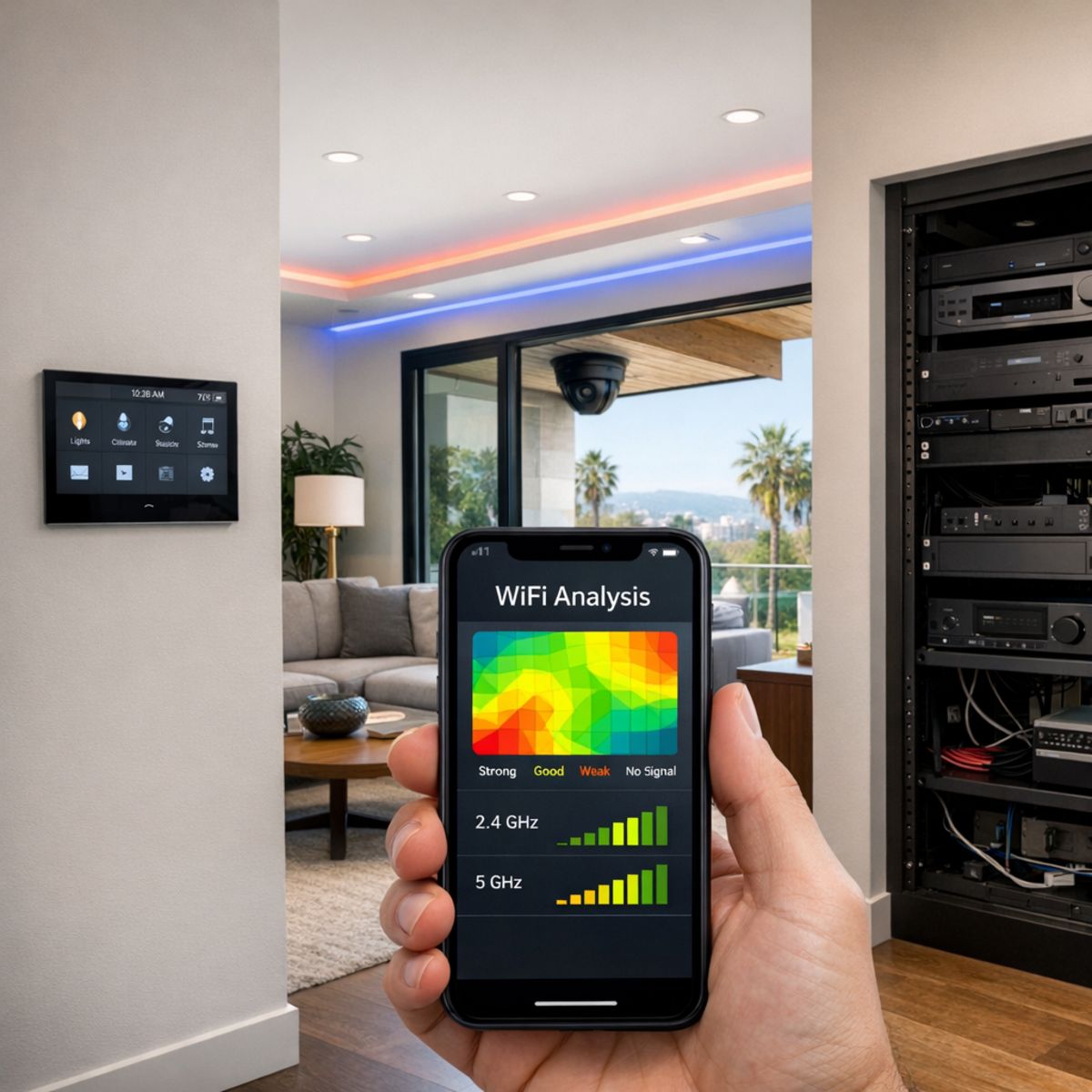
A good wifi analyzer helps turn vague complaints like “the internet feels slow” into something more specific and useful. Instead of guessing, you can see whether the issue is tied to weak signal strength, crowded channels, poor wifi router placement, or inconsistent coverage in certain parts of the home. That matters when problems show up in real life, like buffering in the media room, dropped video calls in an upstairs office, or smart devices that work fine in one room but struggle in another.
Analyzer apps are especially helpful in connected homes where streaming boxes, laptops, phones, tablets, doorbells, and whole-home WiFi networking design solutions all depend on stable coverage. They can help you validate whether a problem is local to one area, temporary because of network congestion, or more structural because of layout, materials, or outdated wifi settings. That makes it easier to decide whether a quick adjustment may help or whether the network needs a broader fix.
Finding Dead Zones and Weak Spots
One of the clearest things a wifi analyzer can reveal is how signal strength changes from room to room. A network may seem fine near the router but weaken noticeably in upstairs bedrooms, a backyard patio, or a far-end guest room. Walls, floors, stone, tile, and built-in cabinetry can all affect coverage. If smart TVs, work-from-home setups, or connected cameras perform poorly only in certain locations, the app can help confirm that the weakness is tied to placement and distance rather than the internet service itself.
Spotting Congestion and Interference
Analyzer apps can also show when nearby networks are competing on the same channels, which is common in dense neighborhoods, condos, or homes packed with wireless activity. That kind of congestion can lead to slower speeds, lag, and inconsistent performance during peak use. If streaming, video meetings, or connected home devices become unreliable at certain times, the data may point to interference rather than a hardware failure. In practical terms, that insight helps you move from frustration to a more informed next step.
How to Use a WiFi Analyzer App at Home
Using a WiFi analyzer app at home is one of the simplest ways to understand whether your problem is weak coverage, inconsistent performance, or something affecting your internet connection more broadly. The key is to test in a repeatable way instead of relying on one quick reading. A good process gives you notes you can compare later and helps you spot patterns that matter in daily use.
Step 1: Start With a Baseline Near the Router
Begin close to your router or main access point and record your baseline readings. Check signal strength, speed, and how stable the connection feels over a few short tests. This gives you a best-case result for your network in that moment. If performance is already poor near the router, the issue may be bigger than simple coverage. If it looks strong here but drops elsewhere, that points more clearly to placement, interference, or home layout challenges.
Step 2: Test the Rooms That Matter Most
Next, walk through the spaces where WiFi matters most: home offices, bedrooms, media rooms, patios, and areas with cameras or smart devices. In each location, note signal strength, speed, and consistency. Try standing where devices are actually used, not just in the doorway. This room-by-room walkthrough makes the results more practical and helps you identify dead zones, weak spots, or rooms where performance changes unexpectedly.
Step 3: Compare Bands and Settings
If your system offers multiple bands, compare how 2.4 GHz, 5 GHz, and 6 GHz behave in the same areas. One band may reach farther, while another may deliver better speed nearby. Also review basic WiFi settings such as channel selection, band steering, and access point placement. You do not need to get overly technical here. The goal is simply to see whether one band performs more reliably than another and whether your setup appears to match how your home is used. For more context, review ways to improve WiFi speed.
Step 4: Repeat at Different Times
Finally, repeat your tests at different times of day. Performance can shift when more people are online, when devices are streaming, or when neighborhood wireless congestion increases. Morning, afternoon, and evening checks often reveal patterns a single test misses. If your notes show recurring trouble in the same rooms or during the same time windows, you will have a much clearer picture of what needs attention. And if the app findings suggest larger layout or configuration issues, professional help may be the smartest next step.
What a WiFi Analyzer App Can’t Fully Diagnose
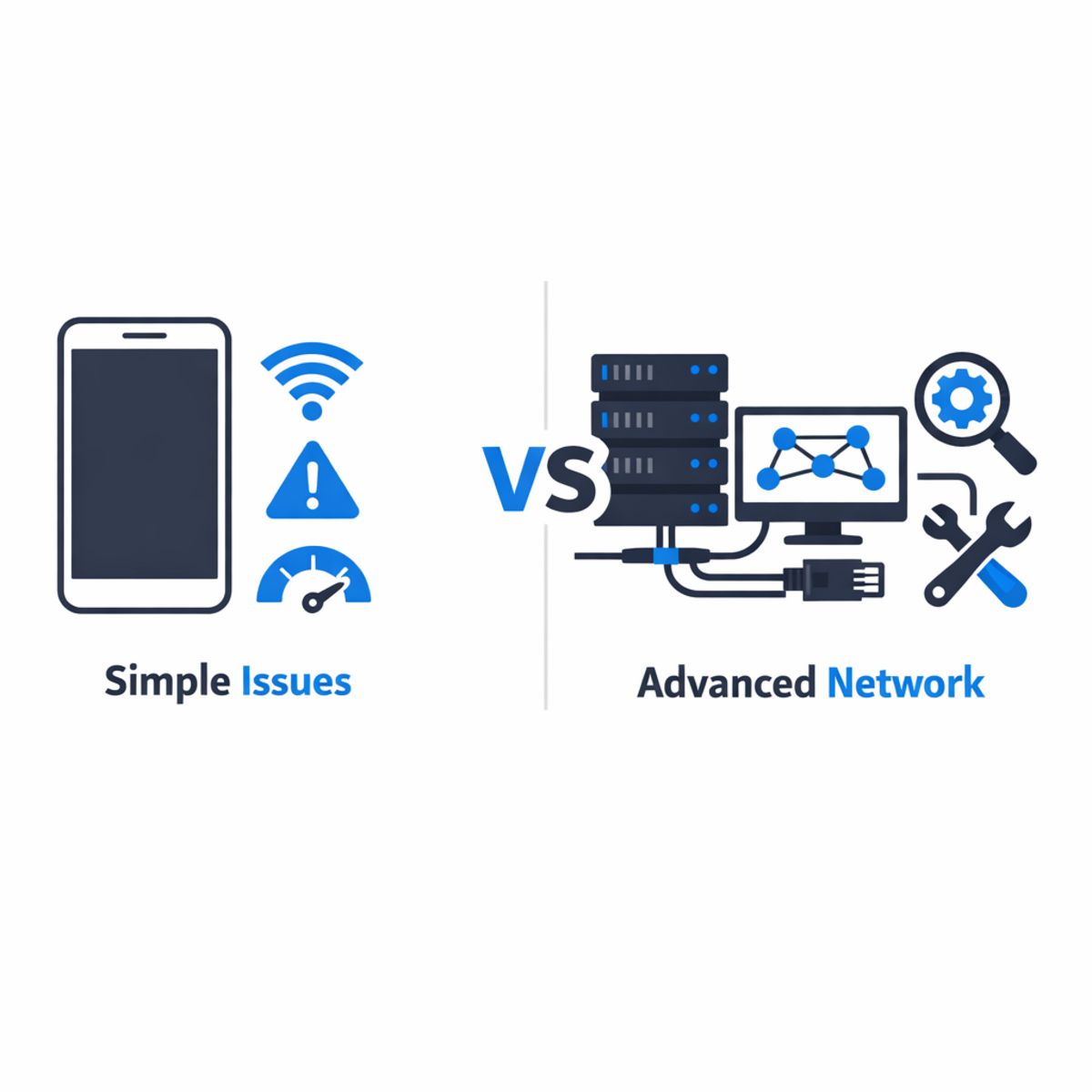
A WiFi analyzer app is a useful starting point, especially for spotting weak coverage, crowded channels, or obvious dead zones. But it only shows part of the picture. In comparison to a full network assessment, an app may not reveal backhaul problems between access points, poor access point placement, ISP bottlenecks, device-specific limitations, or hidden interference from building materials, appliances, and neighboring systems.
That is why some issues continue even after basic tweaks. You might see a strong signal on your phone, yet still experience buffering, lag, or dropped calls. For more complex homes and performance goals, professional whole-home WiFi network installation goes beyond what an app can measure on its own.
Strong Signal Doesn’t Always Mean Strong Performance
Signal strength is only one factor. A device can show plenty of bars while performance still suffers because of latency, network congestion, overloaded hardware, or too many devices sharing the same connection. In simple terms, good signal means your device can “hear” the network, but it does not guarantee the network can respond quickly or handle the traffic efficiently.
When DIY Testing Reaches Its Limit
DIY testing is often enough for small adjustments, but larger homes, detached guest spaces, dense construction, and persistent dead zones usually require a broader design view. The difference is similar to checking one symptom versus evaluating the whole system: apps help identify clues, while a complete assessment looks at layout, equipment choice, roaming behavior, interference sources, and how the network performs across the entire home.
Where WiFi 6, WiFi 6E, and WiFi 7 Fit In
If you are comparing wifi 6 vs wifi 7, it helps to view both as part of the bigger picture rather than a guaranteed fix. WiFi 6 improved efficiency in busy networks, WiFi 6E added access to the 6 GHz band for cleaner spectrum on compatible devices, and WiFi 7 builds on that with newer capabilities designed to support higher throughput and lower latency in the right conditions.
A Quick Breakdown of Modern WiFi Standards
In practical terms, wifi 6e can be useful when congestion is the main problem, especially in dense neighborhoods or device-heavy homes. WiFi 7 may be worth considering if you are already upgrading equipment and want support for the latest devices. But newer hardware does not replace good network design. Router placement, access point locations, wall materials, and interference still shape the experience you get every day.
That is where analyzer apps remain valuable. They can show weak coverage areas, overlapping channels, or congestion that a new router alone may not solve. In other words, standards matter, but planning matters too, especially for home theater setups that need strong WiFi.
When App Results Point to a Bigger Network Upgrade
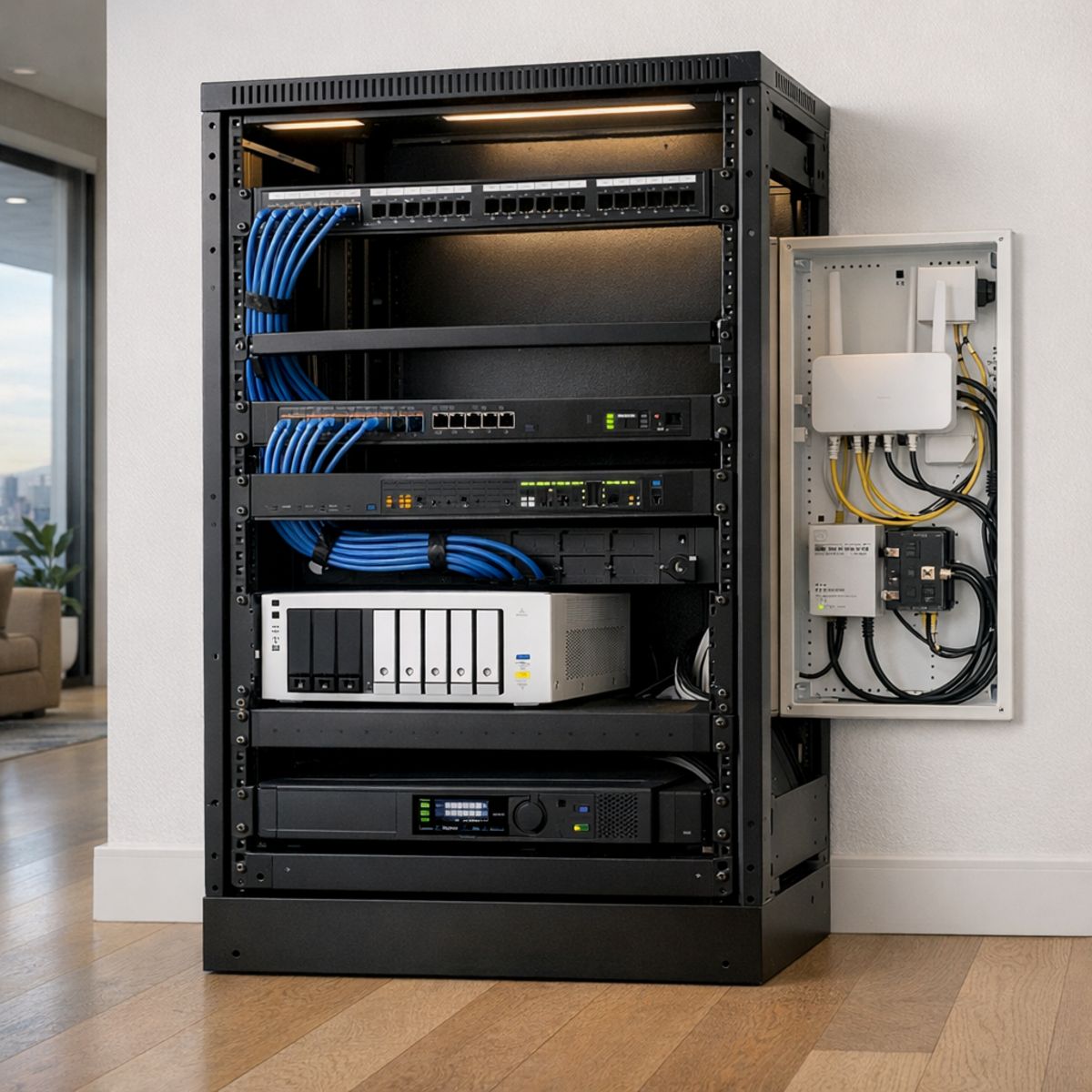
If your testing app keeps showing the same weak spots across different rooms, devices, and times of day, the issue may be bigger than a quick settings change. Repeated dead zones, smart cameras that drop offline, poor roaming as you move through the house, overloaded routers, and uneven performance between floors often point to limits in equipment placement or overall network design.
Sometimes repositioning the router helps, especially if it is hidden in a cabinet or stuck in one far corner of the home. But when problems return after basic adjustments, adding access points or reworking coverage is usually the more reliable answer. That is especially true in larger homes, multi-story layouts, or households with many connected devices competing for bandwidth.
Signs Your Network Needs More Than a Quick Tweak
- Dead zones keep appearing in the same areas
- Smart cameras or streaming devices lose connection regularly
- Devices do not roam smoothly between rooms
- Performance drops sharply during busy household use
- Upstairs and downstairs speeds feel inconsistent
When app findings consistently match these patterns, a more complete coverage plan can make sense. For connected homes, custom whole-home WiFi installation services can provide a longer-term solution that better supports modern devices and daily routines.
Frequently Asked Questions About WiFi Analyzer Apps
Quick Answers to Common WiFi Questions
Is a wifi analyzer app the same as a speed test?
No. A speed test measures how fast your connection performs at a given moment, while a wifi analyzer app helps you evaluate signal strength, channel congestion, and coverage patterns inside your space.
Can a wifi analyzer app help me find the best router placement?
Yes. It can show where signal drops off, which helps you test different router locations. In many homes, moving the router to a more central, open position improves coverage more than changing settings alone.
Why does my WiFi look strong but still feel slow?
Strong signal does not always mean strong performance. Slowdowns can come from channel interference, too many connected devices, outdated hardware, poor backhaul, or internet service limits rather than weak wireless signal.
Do I need new hardware or just better wifi settings?
Start with settings and placement first. If optimization does not solve dead zones, instability, or capacity issues, then newer hardware may be worth considering, especially if your router is several years old.
Can analyzer apps help with smart home device reliability?
Yes, indirectly. Analyzer apps can reveal weak coverage areas and interference that affect smart plugs, cameras, and sensors. They are especially useful for checking whether 2.4 GHz devices are operating in stable signal zones.
Ready for a Smarter WiFi Setup?
If your WiFi issues go beyond what an app can explain, it may be time for a more complete look at your network. Smart Home LA can help evaluate coverage, device load, and overall whole-home performance so you can make confident decisions without guesswork.
Whether you need better reliability for work, streaming, security, or everyday connected living, the team is here to guide you toward a setup that works the way it should.
Final Takeaway
A wifi analyzer app is a smart first step when you want to spot weak signal areas, channel congestion, or inconsistent coverage. It can help you make more informed adjustments and better understand what your network is doing well. But if problems continue across multiple rooms or devices, deeper evaluation is often the better path. In many homes, reliable performance comes from stronger network design, not just changing a few settings.