
Your wifi password does more than let devices connect. It acts as a first layer of protection for your home network, helping guard personal data, reduce unwanted access, and support a smoother experience across everything that depends on your connection. In a connected home, that can include phones, laptops, TVs, cameras, speakers, thermostats, and control systems that need stable, secure access every day.
A weak or outdated password can create problems that go beyond security. It may lead to privacy risks, extra strain on bandwidth, and frustrating issues with device reliability. When more people and smart devices share one network, even a small setup detail can affect performance in noticeable ways.
This article will show you how to choose a stronger password, change it when needed, and troubleshoot common connection issues. It will also explain how better password habits can support overall network health, so your setup stays easier to manage and more dependable over time.
What a WiFi Password Does on Your Network
A WiFi password is the credential you enter to join a wireless network. In simple terms, it helps control who can connect to your home internet over WiFi. If you are asking what a WiFi password does, its main job is to allow approved devices onto the network while helping keep unwanted users out.
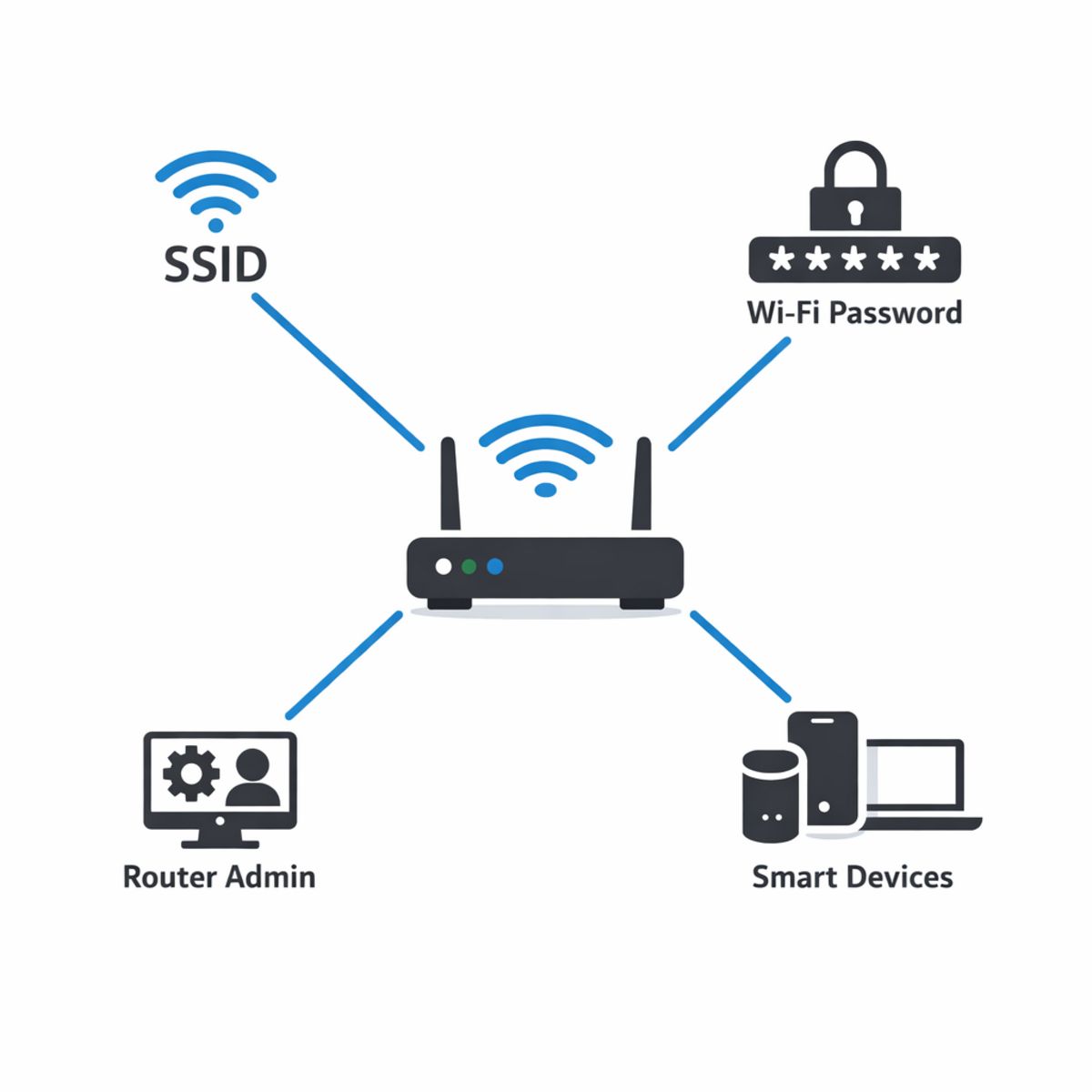
This is different from the network name, also called the SSID. The SSID is simply the name you see in the list of available networks on your phone, laptop, or tablet. The WiFi password is what you type after selecting that name. It is also different from the router admin login, which is a separate username and password used to change wifi settings, security options, and other router controls.
Some devices and apps may also ask for their own account credentials during setup. Those are not the same as your WiFi password. For example, a smart device might need your network password to get online, then require an app login to finish setup.
Modern networks usually pair the password with security standards such as WPA2 or WPA3. In plain language, these standards help scramble data and make the password more effective at protecting access. If you want a stronger setup for larger homes or connected devices, whole-home WiFi networking design services can help create a more reliable and secure network foundation.
SSID vs password vs router login
Think of it this way: the SSID is the label on the door, the WiFi password is the key guests use to enter, and the router login is the management key used by the owner to change how the system works. Mixing these up is common, but each one serves a different purpose.
Why encryption standards matter
WPA2 and WPA3 are security methods that work with your WiFi password to protect your network. WPA3 is newer and generally stronger, while WPA2 is still widely used. Either way, the password is only part of the picture; the security standard behind it also matters.
Benefits of a Strong WiFi Password in a Connected Home
A strong, unique WiFi password does more than block unwanted access. In a connected home, it helps protect speed, consistency, and privacy across the devices your family uses every day. When strangers cannot quietly join your network, there is less chance of bandwidth theft, fewer unexplained slowdowns, and less strain on your wifi router during busy times.
Security and performance go together
Unknown devices on your network can compete for bandwidth and create instability where it matters most. That can show up as buffering during streaming, dropped video calls, lag in app control, or delayed camera alerts. A stronger password lowers the risk of unauthorized access, which helps keep performance more predictable for TVs, tablets, work devices, and systems tied to professional security camera installation solutions.
Why smart homes depend on stable access
Smart locks, thermostats, speakers, lighting scenes, and other connected tools work best on a protected, well-managed network. Fewer unknown connections can mean smoother automations, more reliable routines, and better privacy for personal devices and family data. Over time, strong password habits also make long-term network management easier, especially as you add more smart lighting automation for connected homes. It is also a smart foundation for a future wifi health check if you want to keep your setup running efficiently.
How to Change Your WiFi Password Safely
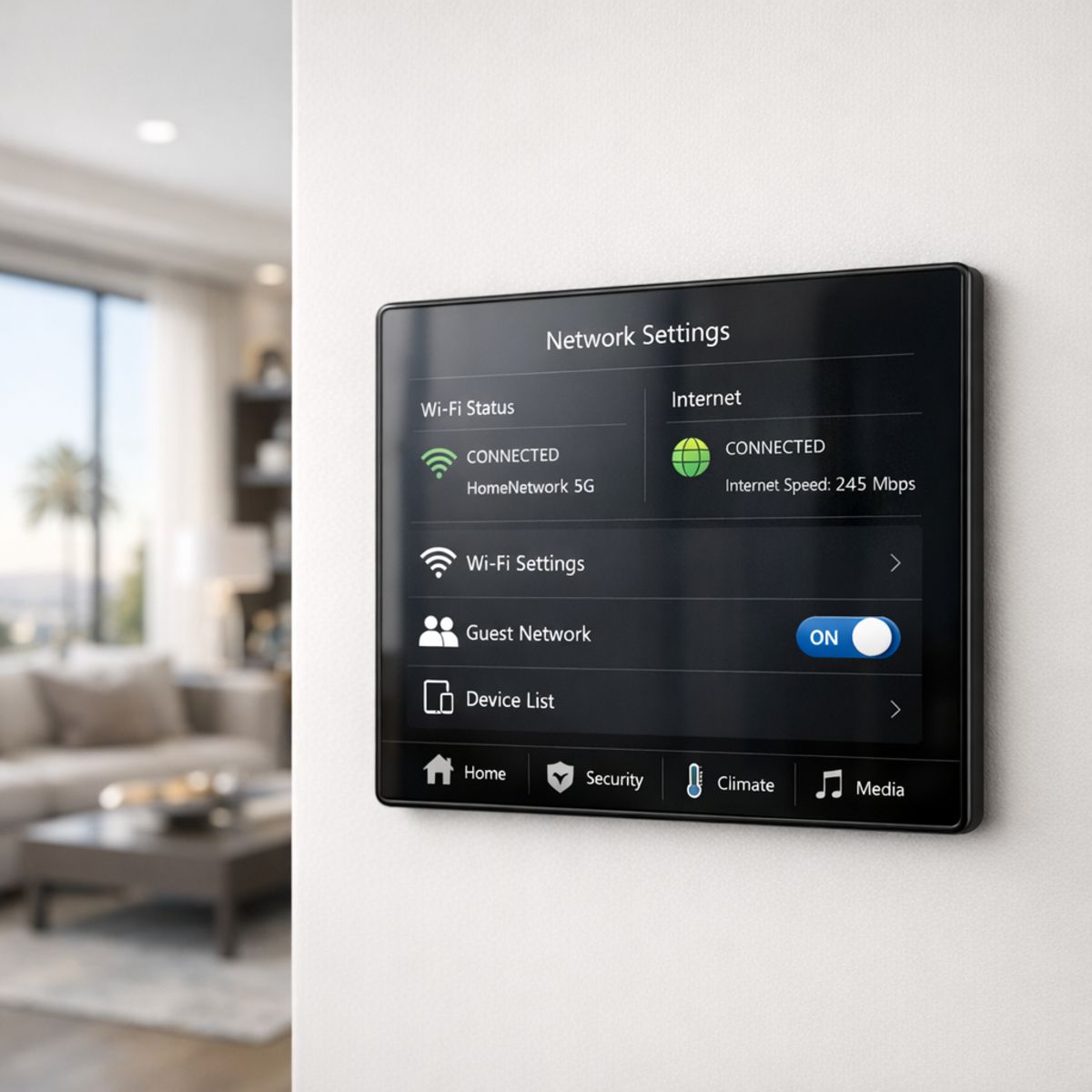
Changing your WiFi password safely is usually a quick job, but it helps to do it in the right order so you do not accidentally disconnect important devices for longer than necessary. If your home relies on streaming boxes, cameras, speakers, or home automation systems that stay connected, a little preparation can make the update much smoother. The goal is simple: update your wifi settings, save the new password, and reconnect devices methodically.
Before you make the change
Start by identifying what manages your network. That may be a standalone router, a modem-router combo, or a mesh system with its own mobile app. Make sure you know how to log in before you begin. If you use a browser-based admin page, confirm the address and login credentials. If you use an app, make sure you are signed in.
Next, note the current network names and list the devices most likely to need attention afterward, such as phones, laptops, TVs, doorbells, cameras, speakers, printers, and smart home hubs. If your router has separate 2.4 GHz, 5 GHz, or guest networks, plan to update one network at a time so troubleshooting stays manageable.
Step-by-step password update
1. Open your router or mesh app, or log into the router admin page.
2. Find the wireless, WiFi, or wifi settings section.
3. Select the network you want to update. If you have multiple bands or a guest network, change them individually rather than all at once.
4. Enter a new strong password that is unique and easy for you to store securely.
5. Save or apply the changes. Your wireless devices will disconnect once the new password takes effect.
6. Reconnect your main devices first, starting with your phone or laptop, so you can confirm the network is working properly.
While you are in the admin area, it is also smart to change the router admin password if it is still set to the default. That protects the network beyond just the WiFi login.
What to reconnect and test afterward
Work through a simple checklist: phones, tablets, laptops, TVs, streaming devices, printers, cameras, video doorbells, speakers, thermostats, smart plugs, and automation hubs. It helps to document reconnections as you go, especially for devices that are mounted, hidden, or rarely accessed. Finally, test a few real-world tasks, such as streaming video, viewing a camera feed, or running a routine, to confirm everything is back online.
Best Practices for Creating a Secure, Usable WiFi Password
A good wifi password should protect your network without becoming so complicated that everyone in the home writes it on a sticky note or forgets it when adding a new device. In most cases, the best choice is a long, unique passphrase that is easy for your household to remember but hard for others to guess. That usually works better than a short string of random symbols and numbers.
Focus on three things: length, uniqueness, and unpredictability. A strong passphrase might combine unrelated words with a memorable pattern, such as a phrase structure like “BlueRiverLampMorning27” rather than personal details or common words. Avoid using names, street addresses, birthdays, pet names, or anything tied to your family or home. You should also avoid reusing passwords from email, banking, streaming, or other accounts.
If your home has many users and devices, store the password in a password manager or in a secure household record that trusted family members can access when needed. For homes with many connected devices, custom whole-home WiFi network solutions can also make it easier to support secure access across the property.
What makes a password strong
Strong passwords are long, unique, and not easily connected to your personal life. Think in terms of a phrase instead of a code. A pattern like “three unrelated words plus a number” is often easier to remember and stronger in practice than a short, complex-looking password. The goal is not to create something copyable here, but to use a structure that is memorable for your household and difficult for outsiders to predict.
When to use a guest network instead
If visitors, service providers, or temporary devices need internet access, a guest network is usually the better option. It lets you keep your main network password private while making sharing more convenient. In connected homes, this also helps separate personal devices and smart home equipment from short-term users, improving both security and day-to-day management.
WiFi Password Problems vs Bigger Network Problems
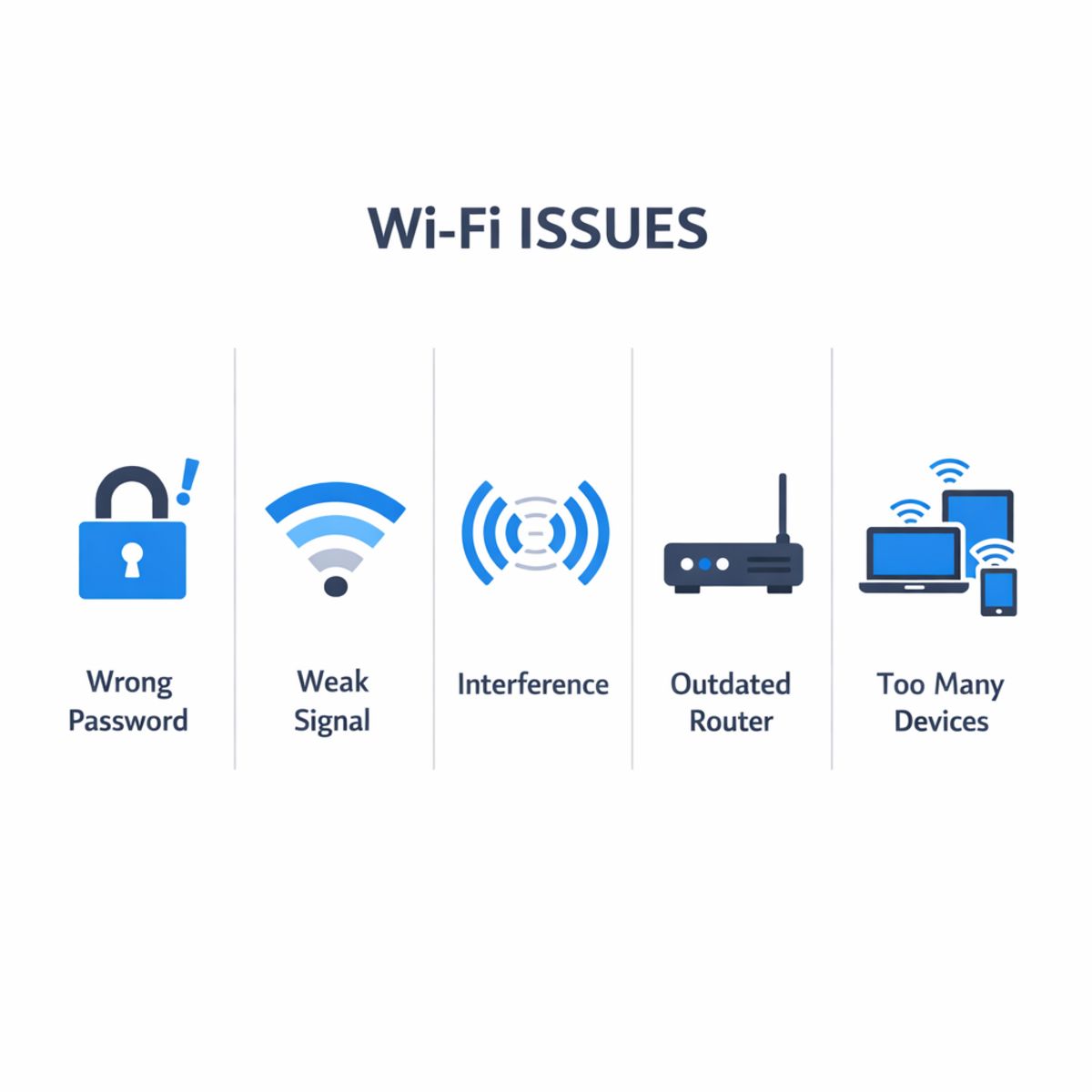
Not every WiFi problem is really a password problem. If you see an immediate “incorrect password” message, repeated login prompts, or a device that refuses to authenticate while others connect normally, the issue is often the saved credentials, security settings, or a mismatch between the network name and password. But if devices connect and still feel slow, drop calls, buffer, or lose service in certain rooms, the real issue is usually signal strength, congestion, interference, or network layout.
Wrong password or weak network?
A bad password tends to block access completely. Weak coverage behaves differently: you may connect successfully but get poor speeds, unstable performance, or dead zones. Interference from neighboring networks, walls, appliances, and too many active devices can create symptoms that look like “bad WiFi” even when the password is correct. In those cases, a wifi test can show whether speeds are dropping, and a WiFi analyzer app guide for diagnosis can help reveal channel overlap and signal issues.
When your router or standard is the real issue
Sometimes the network is simply outgrowing the hardware. A basic ISP router may be enough for light use, but smart homes with cameras, streaming devices, phones, tablets, and work-from-home traffic often need better coverage and capacity. Older equipment can become a bottleneck even with a strong password and good security habits. That is where newer standards like wifi 6e enter the conversation, along with broader future-proofing topics such as wifi 6 vs wifi 7. The point is not to upgrade for the sake of it, but to avoid misdiagnosing a design or capacity problem as a password issue.
When Better Security Also Means a Better Network Setup
Changing a password is often a smart first step, and for many households that may be all that is needed. But if devices still drop offline, video buffers, or coverage remains inconsistent, the issue may be bigger than login security alone. In those cases, the real problem can be poor access point placement, weak signal coverage, or hardware that is simply overloaded.
DIY fixes vs professional network planning
A basic wifi router setup can work well in a smaller home with fewer connected devices. DIY troubleshooting also makes sense when the problem is isolated and easy to identify. But larger homes, outdoor cameras, heavy smart device use, and home theater streaming often put more demand on the network than a simple consumer setup can handle.
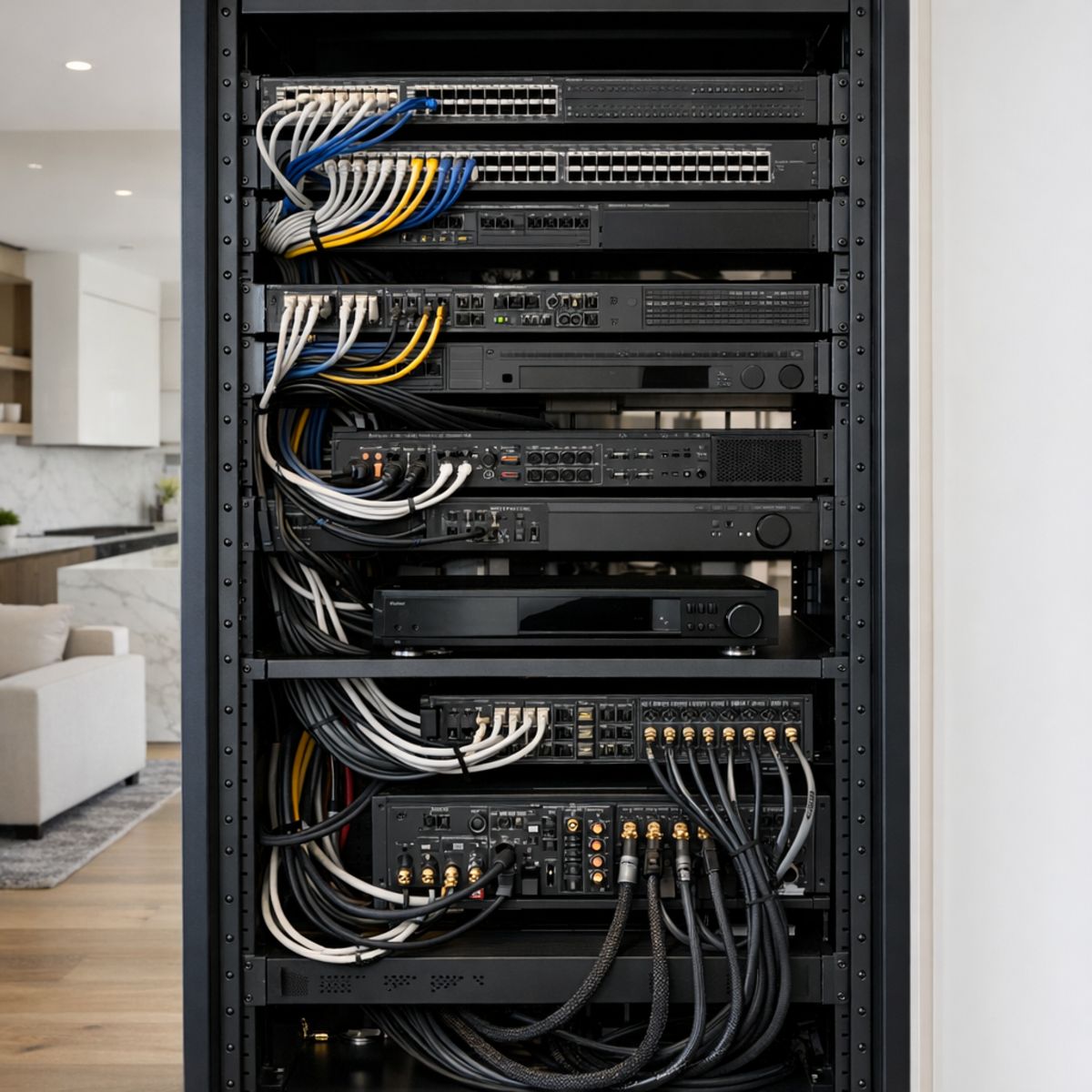
That is where professionally designed whole-home WiFi systems can make a meaningful difference. A thoughtful network design can improve both security and day-to-day performance, helping your connected home run more reliably without turning every issue into a constant troubleshooting project.
Frequently Asked Questions About WiFi Passwords
How often should I change my WiFi password?
You do not need to change it on a strict schedule, but it is smart to update it after sharing it widely, moving to a new home, noticing suspicious activity, or making broader security changes. A strong, unique password matters more than frequent changes.
What should I do if I forgot my WiFi password?
First, check a device that is already connected, your router or mesh app, or the router’s admin settings. In many cases, you can view or update the password there. If that fails, a router reset may be the last option, but it will usually require setting up your network again.
Is the WiFi password the same as the router password?
Usually not. The WiFi password lets devices join your wireless network, while the router password is used to sign in to the router’s settings or admin panel. They serve different purposes and should both be kept secure.
Will changing my WiFi password disconnect smart home devices?
Yes. Devices connected to that WiFi network will lose access until you update them with the new password. That can include smart speakers, cameras, thermostats, plugs, and other connected devices, so plan for a short reconnection process.
Should I share my main WiFi password with guests?
It is usually better to use a guest network instead of sharing your main WiFi password. A guest network is more convenient, easier to change later, and helps keep your primary devices and settings more private and secure.
Need Help With a Smarter, More Reliable Home Network?
If ongoing WiFi issues, weak coverage, or smart home connection problems are getting in the way, our team can help. We offer expert guidance for WiFi design, troubleshooting, and connected home performance, with a focus on stronger coverage, cleaner setup, and more reliable results across your devices. Whether you need a fresh plan or help fixing a frustrating problem, our approach is practical, approachable, and built to give you confidence in your network.
A Better WiFi Password Is a Smart First Step
A strong wifi password is one of the simplest ways to protect your home network, your privacy, and the devices that rely on a stable connection every day. It helps limit unwanted access, reduces avoidable security risks, and supports better overall network performance.
Just as important, password security works best as part of a bigger routine. Review your WiFi settings from time to time, use guest access carefully for visitors and smart devices, and pay attention to persistent slowdowns or coverage issues that may point to a broader network problem.
Secure first, then optimize
Start with better password habits, then build from there. When your network is secure and thoughtfully set up, you give your connected home a stronger foundation for speed, reliability, and peace of mind. And if your setup needs more than a quick settings update, professional guidance can help you get the most from it.