
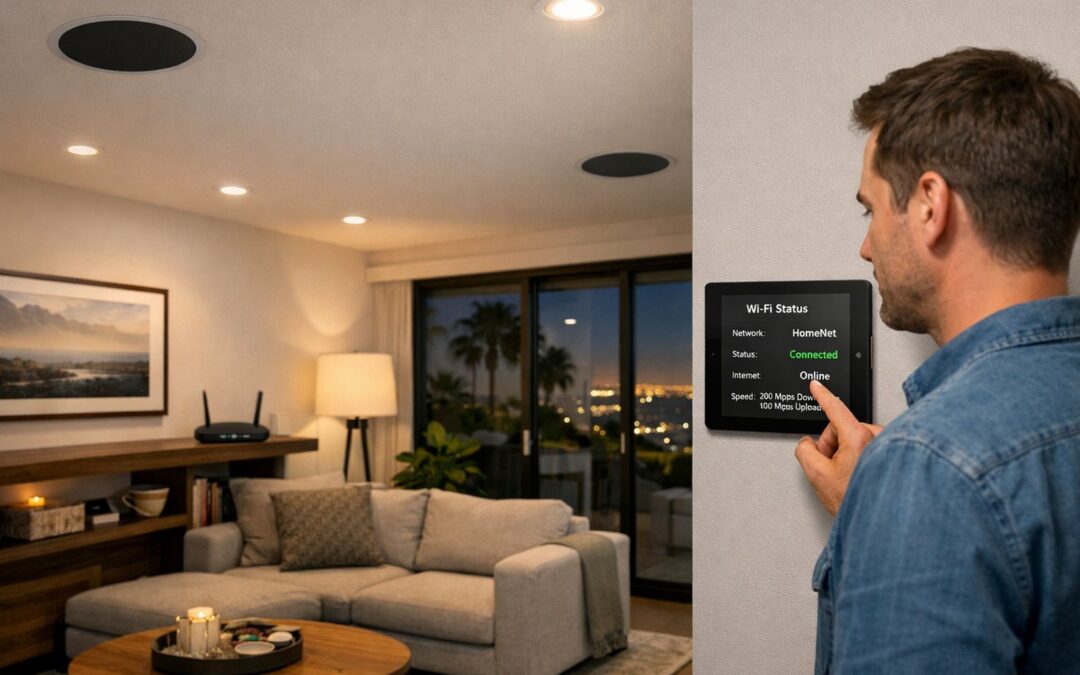
WiFi speed matters because it shapes how your home actually feels online every day. If you deal with buffering shows, frozen video calls, slow app downloads, smart devices that randomly disconnect, or rooms where everything suddenly crawls, you are not alone. Many people assume a fast internet plan should solve all of that, but WiFi speed and internet speed are not exactly the same thing. You can pay for plenty of bandwidth and still have a weak wireless experience in the places where you use your devices most.
That is because real-world WiFi performance depends on more than your provider’s advertised speed. Signal strength, router quality, interference from walls or nearby electronics, device limitations, and overall network setup all affect the speed and reliability your phone, laptop, TV, and smart home gear actually receive. In other words, a strong connected home depends on both speed and consistency.
This guide will help you understand the difference, test what is happening, troubleshoot common problems, and decide when a simple fix or a bigger upgrade makes sense.
What WiFi Speed Actually Depends On
WiFi speed depends on more than the internet plan you pay for. In real homes, wireless performance changes based on router placement, signal strength, interference, band selection, device capability, and how many people or devices are using the network at the same time. That is why one room may feel fast and stable while another has buffering, lag, or dropped connections.
A good way to think about it is that your wifi router is sharing a signal through air, not through a perfect cable. Walls, floors, mirrors, metal, appliances, and even neighboring networks all affect how well that signal reaches each device. If you want a stronger foundation before making changes, it helps to understand what WiFi means for home performance and how each factor shows up in daily use.
Signal strength and distance
The farther a phone, laptop, or TV is from the router, the weaker the signal usually becomes. Dense materials like concrete, tile, brick, metal, and multi-story layouts can make that drop happen faster. Common symptoms include slower downloads, video calls that break up, and streaming that works well near the router but struggles in bedrooms, upstairs spaces, or outdoor areas.
Interference and congestion
Wireless networks also compete with other signals. Nearby WiFi networks, Bluetooth devices, microwaves, baby monitors, and crowded channels can all create interference. Congestion happens when many devices are active at once, especially on the same band. The result is often inconsistent speed, random pauses, or connections that seem fine one moment and unreliable the next, even when your wifi settings look normal.
Hardware and standards
Your equipment matters too. Older routers and older client devices may not support newer standards such as WiFi 6 or WiFi 7, which can improve throughput, efficiency, and stability. Better hardware will not remove every obstacle, but it can handle busy households more effectively and deliver stronger overall performance. For larger homes or more demanding setups, whole-home WiFi networking design services can help match coverage and hardware to the way the space is actually used.
What Better WiFi Speed Improves Day to Day
Better WiFi speed improves more than download tests. In everyday life, it means fewer interruptions, faster response times, and a more dependable experience across the devices you use most. Whether your household is streaming movies, joining video calls, gaming online, or running several phones, tablets, and TVs at once, stronger wireless performance helps everything feel smoother.
Entertainment and work performance
With faster, more stable WiFi, streaming without buffering becomes much more realistic, even when multiple people are online. Video meetings are clearer, with fewer frozen screens and dropped connections. Online gaming benefits from quicker response and more consistent performance, while large file uploads, cloud backups, and camera footage transfers finish faster. If you use home theater setups that need strong WiFi, better wireless coverage can also support a more seamless entertainment experience.
Smart home reliability
Speed also matters for smart home reliability. Connected lighting, voice assistants, security cameras, and control apps all work better when the network responds quickly and stays stable. That can mean lights reacting faster, automation routines running on time, and remote access feeling more dependable. Homes with smart lighting systems with reliable connectivity often benefit from WiFi that supports both coverage and consistent device communication, not just raw bandwidth.
How to Test WiFi Speed the Right Way
A useful wifi test is not just one speed check in one room. To get accurate results, you need a simple process that shows whether the issue is your internet service, your WiFi coverage, device limitations, or channel congestion. If you want a quick refresher on WiFi basics before running speed tests, start there first.
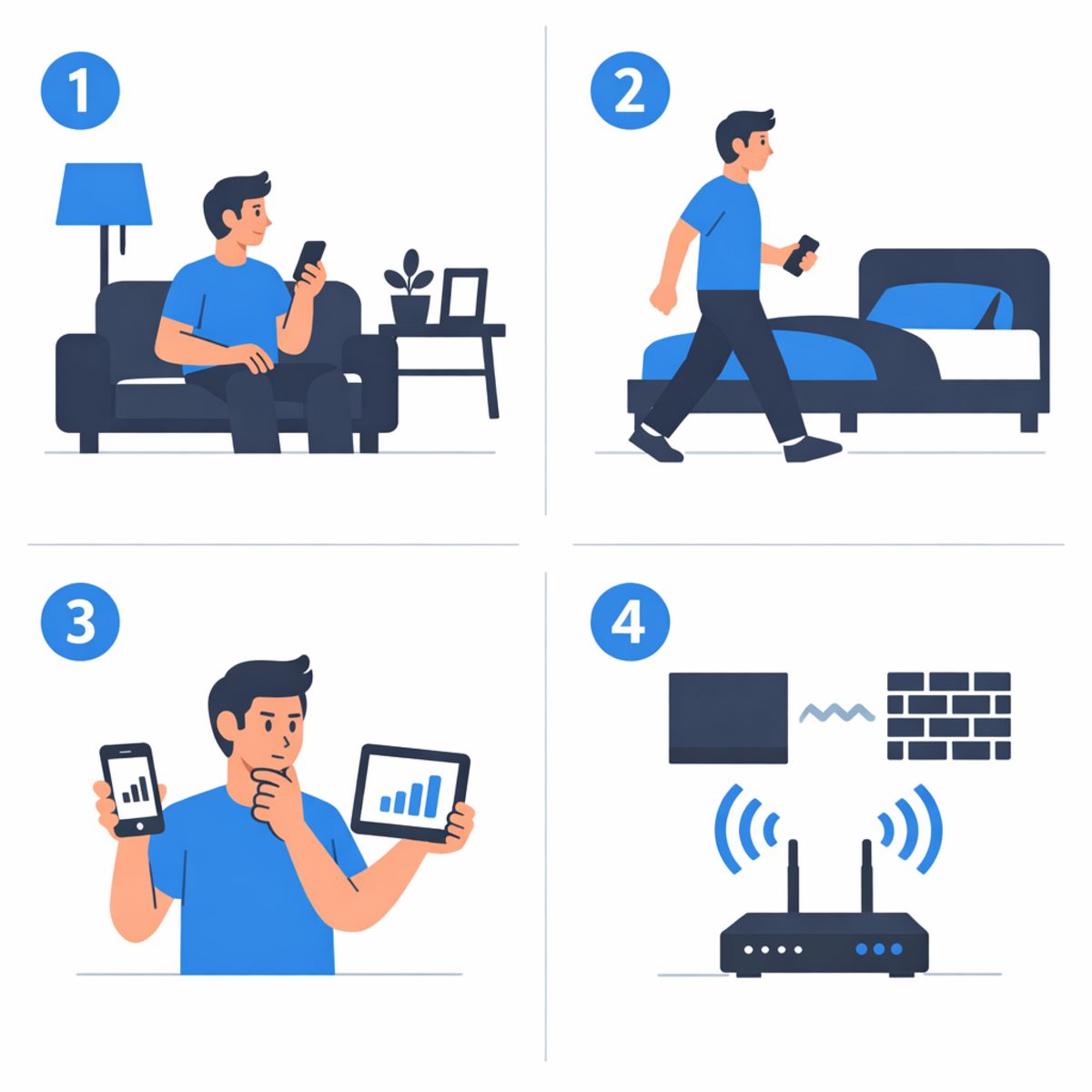
Step 1: Test close to the router
Start with a modern phone, laptop, or tablet standing near your main router or access point. Run the wifi test there first to create a baseline. This helps separate internet plan and router performance from coverage problems elsewhere in the home. If speeds are already low near the router, the problem may not be distance. It may point to your service, router settings, or heavy network use.
Step 2: Test in problem areas
Next, repeat the same wifi test in the rooms where buffering, lag, or dropouts happen most often. Compare not only download and upload speed, but also consistency. If one room is much slower than the baseline, that usually suggests weak signal, interference, or poor access point placement. Run tests more than once and at different times of day so you do not rely on a misleading one-time result.
Step 3: Check channels and settings
If results vary a lot, use a wifi analyzer or wifi analyzer app to look for nearby network congestion. Crowded channels can reduce performance even when signal strength looks decent. You can also review basic settings such as band selection, channel choice, and whether devices are joining the most appropriate network. Keep changes simple and test again after each adjustment.
Step 4: Compare devices
Finally, test more than one device. If every device is slow in the same area, the issue is likely network-wide. If only one laptop, phone, or streamer struggles, that device may be the bottleneck. Older hardware, outdated software, or old wifi drivers can all affect real-world speed. This step-by-step workflow makes it easier to choose the right next action instead of guessing.
Common Fixes That Can Improve WiFi Speed
Before paying for faster internet or replacing equipment, it often makes sense to work through a few practical fixes first. The most effective improvements usually come from better placement, routine maintenance, and simple wifi settings checks. These steps can provide immediate value, but they also help clarify when a basic tweak is enough and when a larger solution may be needed.
Placement and coverage adjustments
Start with router location. Moving the router to a more central, open area can improve signal strength across the home. Elevating it on a shelf and keeping it away from dense walls, cabinets, and metal objects can also help. In larger homes, one room may improve while another still struggles, which is a sign that placement alone may not solve the issue.
Device and network housekeeping
Next, reduce interference from nearby electronics like microwaves, cordless phones, or crowded entertainment cabinets. Then restart the modem and router, and check for firmware updates. This kind of maintenance should be routine, not a one-time fix. It is also smart to review how many devices are connected, since overloaded networks can slow down performance even when the signal looks strong.
When settings changes help
Simple wifi settings changes can make a difference too. If your network supports both 2.4 GHz and 5 GHz, use 5 GHz for speed at shorter range and 2.4 GHz where distance matters more. Reviewing channel selection or outdated security and compatibility settings may also improve consistency. Keep these changes straightforward unless you know exactly what you are adjusting. If the network still feels unreliable after these steps, it may be time to explore professional whole-home WiFi installation solutions.
- Move the router to a central, open location
- Optimize 2.4 GHz and 5 GHz usage based on distance and speed needs
- Reduce interference from nearby electronics
- Restart and update networking hardware regularly
- Review wifi settings for outdated configurations
WiFi 6 vs WiFi 7: Is Newer Always Better?
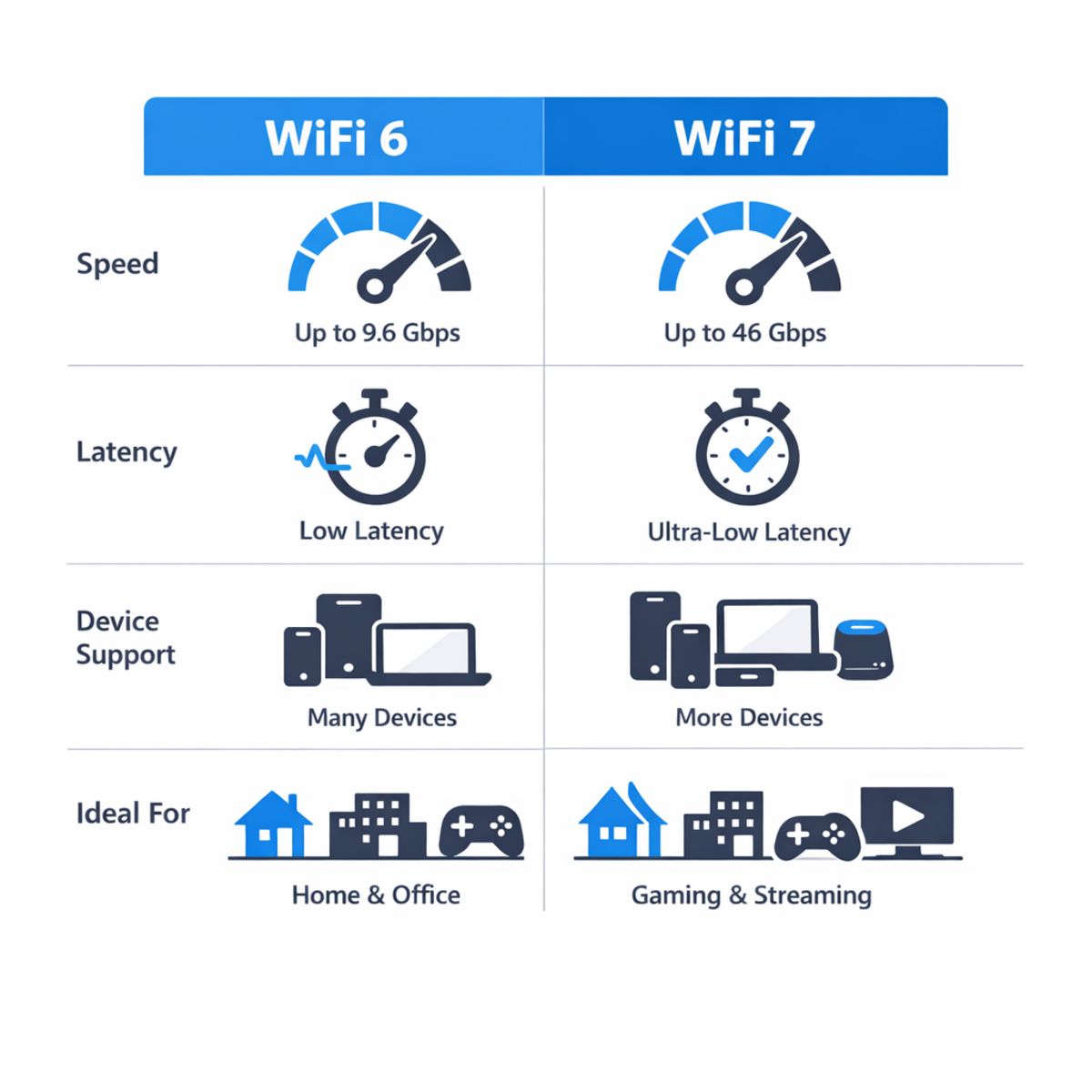
When comparing wifi 6 vs wifi 7, the short answer is that newer is not always better for every home. WiFi 7 can deliver higher performance, lower latency, and better handling for busy networks, but those gains depend on the devices you own, the internet service coming into the house, and how well the network is designed overall.
Who benefits most from newer standards
A WiFi 7 upgrade makes the most sense for households with many connected devices, frequent 4K or 8K streaming, online gaming, video calls, and advanced smart home setups. It can also be a smart move for connected home systems that benefit from upgrades, especially when multiple devices are active at the same time. Still, compatibility matters: if most phones, laptops, TVs, and smart devices in the home are still WiFi 6 or older, you may not notice a dramatic difference right away.
When an upgrade will not solve the problem
A newer router will not automatically fix dead zones, weak signal in distant rooms, or inconsistent coverage between floors. Poor equipment placement, interference, and weak network design can limit performance no matter which wireless standard you choose. In many cases, the best result comes from matching the right hardware to the layout of the home rather than simply buying the newest option available.
Signs You May Need a WiFi Health Check
If your network problems keep coming back, a basic reset may not be enough. A professional wifi health check can help identify whether the issue is caused by weak coverage, poor access point placement, interference, or too many devices competing at once. If several of the signs below sound familiar, it may be time to get expert help with whole-home WiFi performance.
Quick checklist of warning signs
- You have recurring dead zones in the same rooms or outdoor areas.
- Video doorbells or camera feeds become unstable or disconnect.
- Speeds drop sharply in certain parts of the house, even when service is fine elsewhere.
- The network struggles during peak usage, such as evenings or weekends.
- Problems get worse when many smart devices are active at the same time.
- You have already tried restarting equipment, but the same symptoms keep returning.
When issues are consistent rather than random, they often point to a design, capacity, or coverage problem instead of a one-time glitch.
Frequently Asked Questions About WiFi Speed
Why is my WiFi speed slower than my internet plan?
Your internet plan shows the speed coming into your home, but WiFi performance depends on distance, walls, interference, router quality, and the device you are using. Even with a fast plan, wireless speeds often drop in rooms farther from the router or on older phones, tablets, and laptops.
How do I run an accurate wifi test?
Start by testing close to the router, then test again in the rooms where performance feels weak. Use more than one device and check at different times of day so you can tell whether the issue is location, device limits, or network congestion.
Can a wifi analyzer app really help?
Yes, a WiFi analyzer app can help you spot crowded channels, weak signal areas, and possible interference. It is useful for basic diagnosis, but it will not solve every problem on its own if the real issue is poor placement, outdated hardware, or home layout challenges.
Which wifi settings matter most for home users?
The most important settings are usually the right band selection, a less crowded channel, current firmware, and strong security. For most homes, simple adjustments work better than advanced tweaks, especially if you want stable performance without constant maintenance.
Do I need a new wifi router to get better performance?
Sometimes yes, especially if your router is old, underpowered, or cannot support your internet speed and number of devices. But many WiFi problems come from placement, interference, or coverage gaps, so a better design or setup may help more than a router replacement alone.
Is WiFi 7 worth it right now?
WiFi 7 can be worthwhile if you have compatible devices, heavy usage, and a network that is already well designed. For many households, though, upgrading to WiFi 7 will not fix weak coverage or poor placement, so it makes sense to solve the actual bottleneck before buying the newest standard.
When It Makes Sense to Bring in a WiFi Expert
If your home has recurring dead zones, inconsistent performance from room to room, or a growing mix of smart home devices, it may be time for professional help. Larger homes and more complex networks often need more than basic troubleshooting. A professionally designed WiFi and networking setup can improve coverage, speed, and reliability together, so everything works more smoothly day to day.
A smarter next step for persistent issues
If you are dealing with ongoing WiFi speed issues, whole-home coverage problems, or planning smart home networking upgrades, our team can help you find the right solution.
Final Takeaways on Improving WiFi Speed
Improving WiFi speed usually comes down to a few core factors: coverage, interference, hardware, settings, and overall network design. If your connection feels inconsistent, the best next step is to test before guessing. A structured wifi test can help you see whether the problem is weak signal, congestion, outdated equipment, or a setup issue inside the network.
Start with testing, then improve strategically
Begin with the simple fixes first: move your router, reduce interference, check device placement, and review key settings. If those changes do not improve WiFi speed, it may be time to upgrade hardware or consider a more complete networking solution. The goal is not to try everything at once, but to make smart changes based on what the testing shows. That approach gives you a clearer path, better results, and more confidence in the fix.