
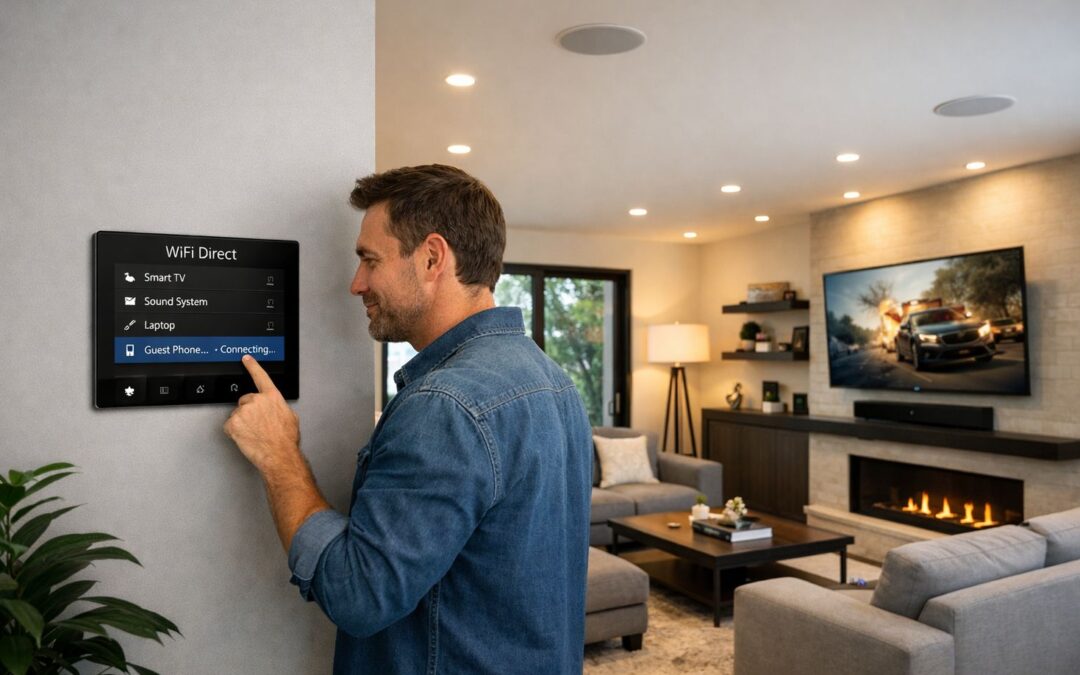
WiFi Direct is a way for compatible devices to connect directly without using a traditional wireless router for the connection itself. If you have ever tried printing from your phone, sending files between devices, or linking a TV, speaker, camera, or printer during setup, you have probably seen the term wifi direct and wondered whether you should turn it on. For most people, the real question is not about technical standards, but about what it does, when it is useful, and whether it matters in everyday home use.
This guide is built to make that clear in plain language. We will cover what WiFi Direct means, how it compares with Bluetooth and regular Wi-Fi, how to set it up on common devices, and what to try when it does not work as expected. The goal is practical understanding, so you can make better decisions about sharing, streaming, printing, and connecting devices around your home.
Why people keep seeing WiFi Direct
Many modern devices surface WiFi Direct in menus because it supports quick device-to-device communication in familiar situations. Phones may use it for file sharing, printers for direct mobile printing, and smart TVs or speakers for setup and media connections. That is why the feature keeps appearing in connected-home experiences, even if you are not actively shopping for networking tools or changing your main internet setup.
What Is WiFi Direct?
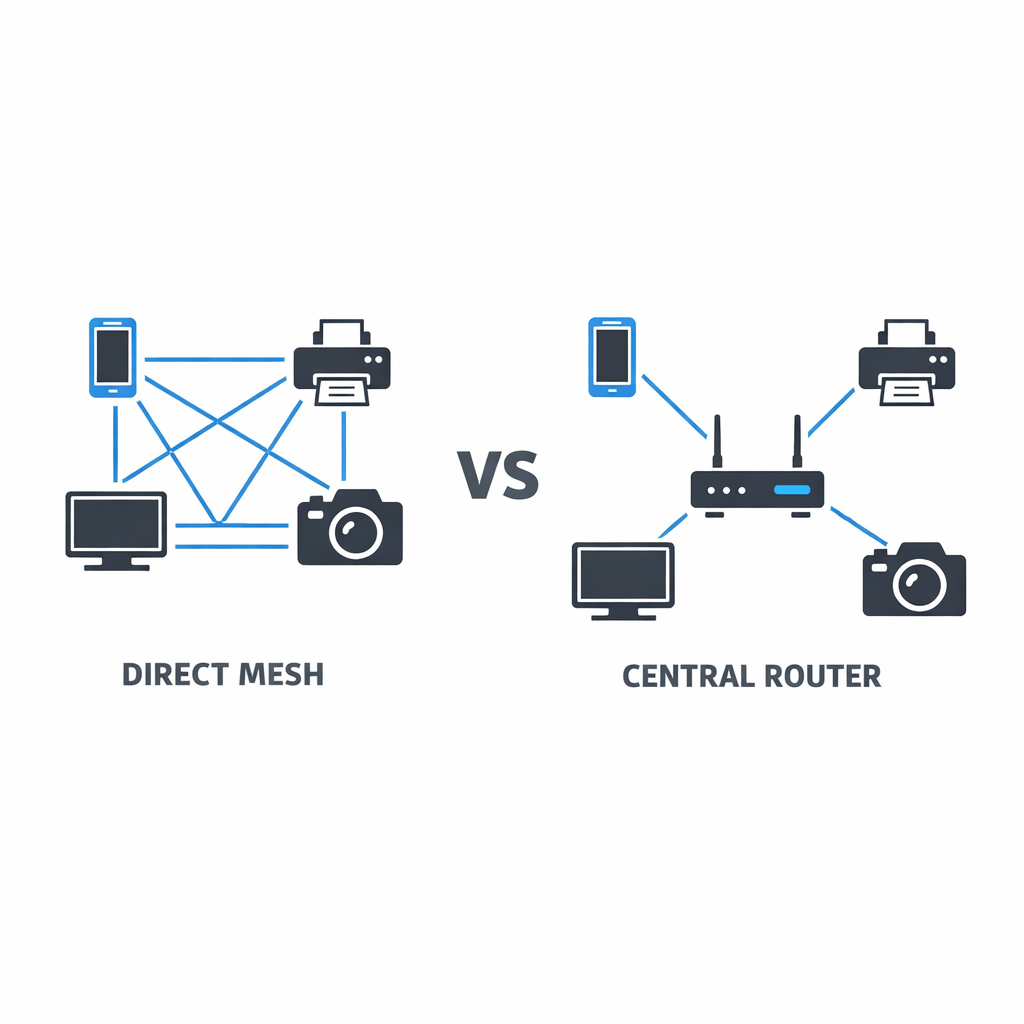
WiFi Direct is a peer-to-peer wireless standard that lets compatible devices connect directly to each other without first joining a traditional home network. In simple terms, it creates a private wireless link between devices so they can communicate, share data, or control functions without relying on a separate wifi router for the connection itself.
One device usually takes the lead and behaves a bit like a temporary access point, while the other device discovers it and joins. That makes the setup feel like a private wireless handshake: the devices find each other, pair, and then exchange information over that direct link. This is why WiFi Direct is commonly used for file transfers, wireless printing, screen mirroring, and connecting accessories or peripherals.
How the connection works
Instead of sending traffic through your normal router, the two devices talk straight to each other. For example, a phone might connect directly to a printer or TV, allowing a task to happen quickly without needing the full home network involved. The exact steps vary by device, but the basic idea is discovery, pairing, and temporary direct communication.
Why WiFi Direct is not the same as internet access
WiFi Direct does not automatically provide internet access, improve whole-home coverage, or replace your router. It is mainly for device-to-device pairing, not for running your entire household network. If you need stronger coverage, better performance, or professional whole-home WiFi networking design services, that is a different solution from WiFi Direct.
Common Uses for WiFi Direct
WiFi Direct is most useful when two compatible devices need to connect quickly without going through a full router setup. In everyday consumer electronics, that often means simple tasks like sending a photo from a phone to a printer, sharing a screen to a TV, or moving files between devices. For many people, the value of wifi direct is not that it replaces home Wi-Fi, but that it makes short, task-based connections easier.
Printing, sharing, and casting
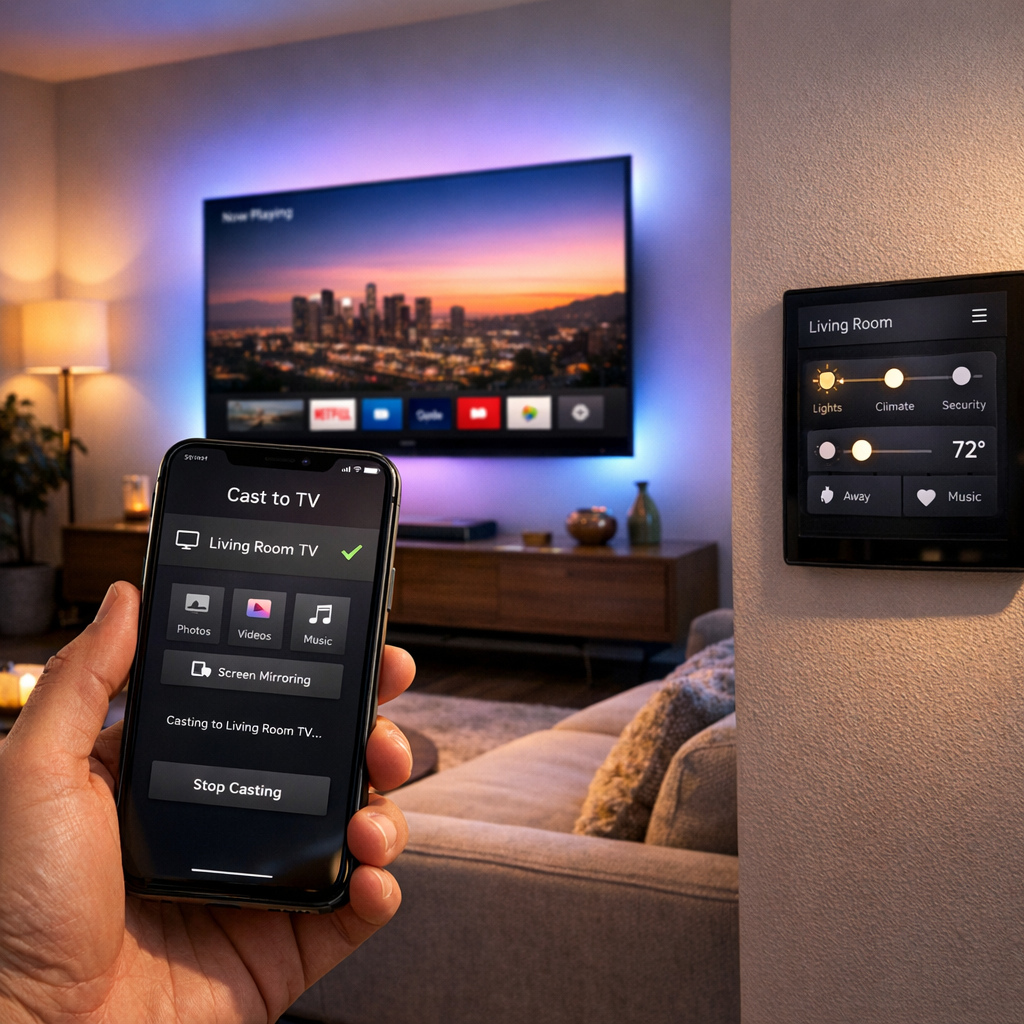
One of the most common uses is wireless printing from a phone or tablet without dealing with a more complicated network setup. Some printers let you connect directly, choose the file, and print. The same idea applies to screen sharing and casting on certain TVs, monitors, and media devices, where a direct connection can help display photos, presentations, or video from a compatible phone, tablet, or laptop. File transfers are another practical example, especially for moving images, documents, or camera content between supported devices.
Temporary setup connections for smart devices
WiFi Direct can also appear during temporary setup flows. Some cameras, speakers, smart displays, and similar products create a direct wireless link first so you can enter settings before the device joins your main network. That can be convenient when a full network connection is unnecessary at the start. In smart-home-adjacent categories, this may come up with accessories or even products related to smart security camera features that matter. Still, compatibility varies by brand, operating system, and device generation, so the experience is not identical across Android phones, Windows PCs, TVs, printers, and specialty devices.
WiFi Direct vs Traditional WiFi and Bluetooth
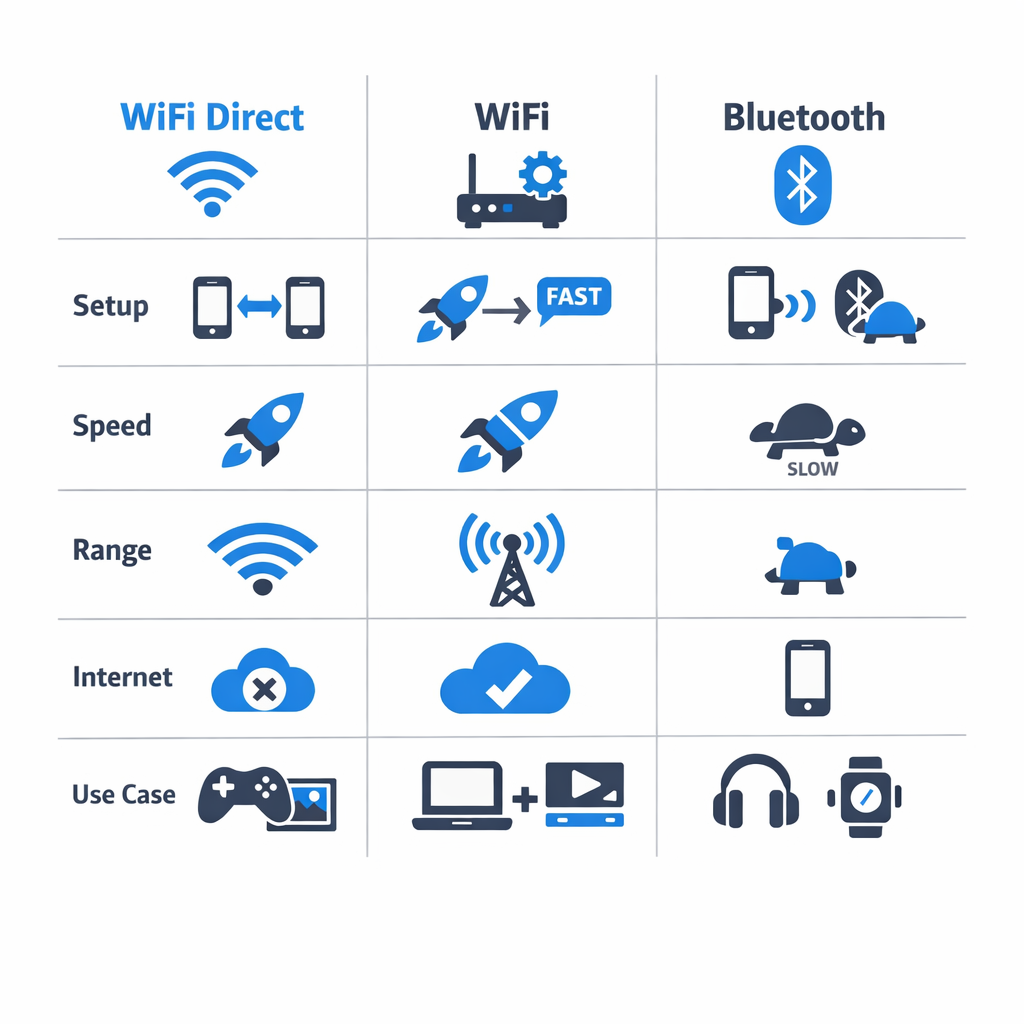
If you are comparing WiFi Direct with standard WiFi or Bluetooth, the simplest way to think about it is this: WiFi Direct is a device-to-device connection method, while traditional WiFi is the broader network most homes rely on every day. Bluetooth is also device-to-device, but it is usually built for lower-bandwidth accessories and quick convenience rather than larger transfers.
WiFi Direct vs standard home WiFi
Traditional WiFi typically depends on a wifi router or access point. That central network lets phones, TVs, laptops, cameras, and smart devices all communicate in an organized way, often with internet access included. WiFi Direct skips that infrastructure and creates a direct peer-to-peer link between compatible devices instead.
That means WiFi Direct can be useful for one-off tasks like printing, screen sharing, or transferring files without joining the main network. However, it does not replace the role of standard WiFi in a connected home. If you want dependable coverage, stable streaming, and many devices working together, whole-home reliability still comes from proper network design, not from direct pairing alone.
WiFi Direct vs Bluetooth
Compared with Bluetooth, WiFi Direct often offers higher potential bandwidth, which can mean better wifi speed for file transfers or media sharing between supported devices. That makes it appealing when moving larger files or using applications that benefit from more throughput.
Bluetooth, though, is often simpler and more convenient for everyday accessories like headphones, keyboards, speakers, and wearables. It is designed for fast pairing and low power use, even if transfer speeds are lower. WiFi Direct may outperform Bluetooth in raw transfer capability, but it is not always the easiest option for casual use. Setup, compatibility, and device behavior can vary.
In short, WiFi Direct is situational: useful when two devices need a direct, higher-bandwidth connection without depending on the internet. Traditional WiFi remains the backbone for most homes, especially when planning an integrated home automation network planning approach that supports performance, coverage, and convenience across the entire property.
How to Use WiFi Direct
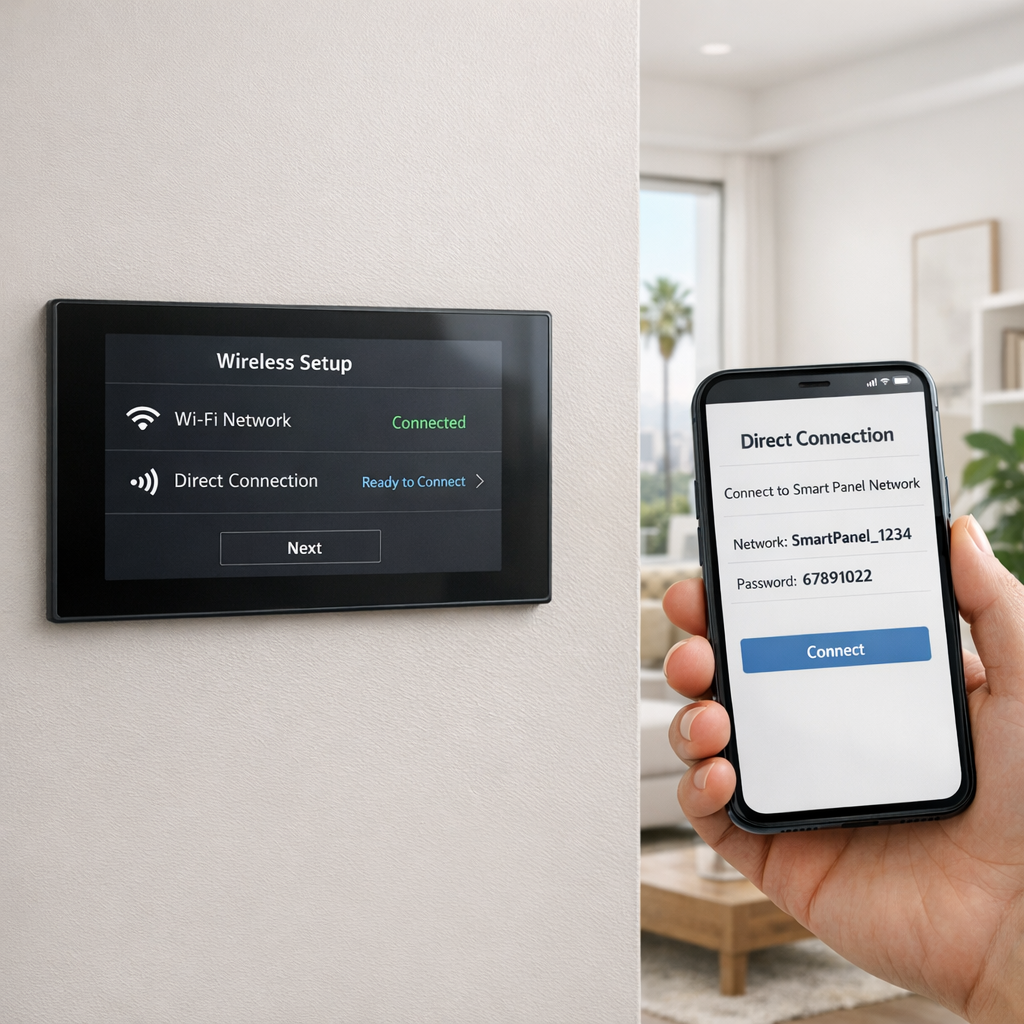
WiFi Direct lets two compatible devices connect to each other without going through your regular router. While menu names vary by brand, the process is usually similar on phones, TVs, printers, cameras, and smart displays. If you want broader help beyond device-to-device pairing, expert whole-home WiFi installation support can help with larger network issues.
- Confirm compatibility. Check that both devices support WiFi Direct or a similar branded feature. Some manufacturers may label it as Direct, Wireless Display, Print Direct, Screen Share, or Peer-to-Peer connection.
- Open the right menu. On the sending device, look under settings related to sharing, printing, display, casting, or connections. On the receiving device, open its network or device connection menu.
- Turn on discovery mode. Enable WiFi Direct or direct connection mode on the target device first. This makes it visible for pairing and may display the device name you need to select.
- Select the device and pair. From the source device, choose the target device from the list. Some devices will show a temporary wifi password, passcode, or PIN. Enter or confirm it exactly as shown.
- Test the connection. Send a file, start a print job, or mirror the screen to confirm everything works. If it fails, cancel the session and repeat the pairing steps carefully.
Where to find the setting
The setting is often found under Network, Connections, Sharing, Display, Printer Settings, or Connected Devices. Because manufacturers rename features, look for terms related to direct wireless connection rather than only “WiFi Direct.”
How to pair securely
Before accepting a connection, verify the device name matches the one you expect. Use the shown PIN or temporary wifi password only for that session, and avoid pairing in crowded areas unless you can confirm the correct target device on screen. If the device saves old pairings, remove ones you no longer use.
Limitations, Security, and Troubleshooting
WiFi Direct can be convenient, but it is not always seamless. If it fails to connect or feels unreliable, the cause is often a mix of hardware limits, software differences, distance, and local interference rather than simple user error. Two devices may both advertise WiFi Direct support while still handling pairing, file sharing, or media streaming differently.
Why WiFi Direct may not be working
Common problems include devices not discovering each other, interrupted pairing, unsupported file types, or unstable performance when the signal is weak. Older firmware, different WiFi chipsets, and incompatible feature sets can all affect results. In some homes, congestion from nearby networks, Bluetooth accessories, or smart devices can also reduce reliability.
- Confirm both devices support the same WiFi Direct function, not just the label.
- Update device software and firmware before retrying.
- Move devices closer together and reduce interference from other wireless gear.
- Restart pairing from scratch if the first handshake was interrupted.
Basic security considerations
WiFi Direct typically uses temporary credentials and direct pairing, but users should still connect only to trusted devices. If a session is no longer needed, disconnecting afterward is a practical habit, especially on shared or mobile devices. Security is usually adequate for normal use, but convenience should not replace basic caution.
If you are also searching for a wifi analyzer app, wifi test, or wifi health check, those tools can help identify broader wireless issues such as channel congestion or weak coverage. However, they may not solve device-specific compatibility problems built into the products themselves. In more complex setups involving connected home theater system installation, stable networking across devices becomes even more important.
The best approach is to verify compatibility, keep software current, and test in a low-interference environment before assuming the feature is broken.
Frequently Asked Questions About WiFi Direct
Quick answers
Does WiFi Direct need internet to work?
No. WiFi Direct creates a direct device-to-device connection, so it can transfer files or stream content without internet access.
Is WiFi Direct faster than Bluetooth?
Usually, yes. WiFi Direct typically offers higher transfer speeds than Bluetooth, especially for larger files and media sharing.
Is WiFi Direct the same as hotspot mode?
No. WiFi Direct connects devices directly, while hotspot mode shares one device’s internet connection with others over standard WiFi.
How do I find my WiFi Direct password?
It depends on the device. On many phones, printers, or TVs, the WiFi Direct password appears in the WiFi Direct settings menu when the feature is enabled.
Can WiFi Direct replace a home WiFi router?
Not fully. WiFi Direct is useful for short-range direct connections, but it does not replace a router for whole-home networking, internet access, or managing many devices at once.
When a Better Network Matters More Than WiFi Direct
WiFi Direct can be helpful for simple one-to-one tasks, like connecting a device quickly without going through your main network. But when you need reliable coverage across an entire home, support for multiple connected devices, or stable performance for smart technology, streaming, cameras, and entertainment systems, direct pairing usually is not enough.
That is where professionally planned networking makes a real difference. A stronger network foundation helps everything work together more consistently, reduces frustrating dropouts, and supports the way modern homes actually use technology every day. If you are dealing with bigger connectivity issues, working with whole-home WiFi networking design experts can be a smart next step.
If your home needs more than a quick device-to-device connection, contact the team for expert guidance on a professionally designed WiFi and networking solution.
Final Takeaway
WiFi Direct is most useful when you want two devices to connect directly for a specific task, like quick file sharing, printing, or screen mirroring, without relying on a router. It is a practical option for simple device-to-device moments, but it is not a replacement for a strong home network that supports full-home coverage, multiple connected devices, and a smoother smart-home experience.
Choose the right wireless tool
The easiest way to think about it is this: use WiFi Direct when the job is short, local, and between devices. Use your main network when you need broader performance, stability, and everyday connectivity. Choosing the right connection method for the job helps everything work more smoothly and keeps your setup simple.